Project Quarm/TAKP Setup
Contents
Important Notes

This guide will teach you how to use EverHack for Project Quarm, and TAKP Emulated Servers! EverHack will allow you to do things that the EverQuest client would prevent you from doing. Such as instantly zoning to any connecting zone, and even giving your character special abilities that would require items, or a spell to achieve!
Some of the things EverHack for Project Quarm, and TAKP can do is:
- Never get rooted, or snared.
- Permanently levitate your character even after zoning!
- Never get stunned or mezzed!
- Permanent Enduring Breath!
- No Gravity, you can fly anywhere in the zone and go as high as you like!
- Disable character sliding, and slipping floors in the game!
- No Falling damage, and carry as much as you like! Tired of being overweight and have to run to a merchant? You can now carry any amount!
- Permanent bard speed, always have the fastest selo's on your character at all times even after zoning!
- Change your character's jumping height.
- Change your title.
- Change your name.
- Run at fullspeed with fungi stick regen buff on, including Torpor.
- and much more!
- Make sure you have the latest version of EverHack for Project Quarm downloaded, new versions are always posted in your member section. Which you can access here: DOWNLOAD
First time Setup
First thing you will need to do after purchasing is create a Launcher Alias/Username. This will be used when you upload teleport locations, saving your settings etc. You can register a launcher ID here: REGISTER LAUNCHER ID
- After you have registered a launcher ID you will need to wait for access from an administrator. If you would like immediate access you can visit our discord, and request access. Our discord link is: DISCORD
- Sometimes your AV/Windows Defender will flag KenetixQuest, this is a false positive as KenetixQuest uses an open source obfuscation tool called Obfuscarwhich protects the code. You will need to allow KenetixQuest as an exception in windows defender. Make sure you allow the folder, and not just KenetixQuest.exe. To learn how to give KenetixQuest, an exception in windows defender you can visit here: How to give an Exception.
- Once you have access download the latest build from your member section here: DOWNLOAD run KenetixQuest.exe as an administrator (right click run as administrator). If you don't run as administrator, everything except runspeed modifications will work. Runspeed requires full administrator rights.

- After you have launched KenetixQuest you will prompted to enter your Launcher ID. Go ahead, and then login to KenetixQuest.
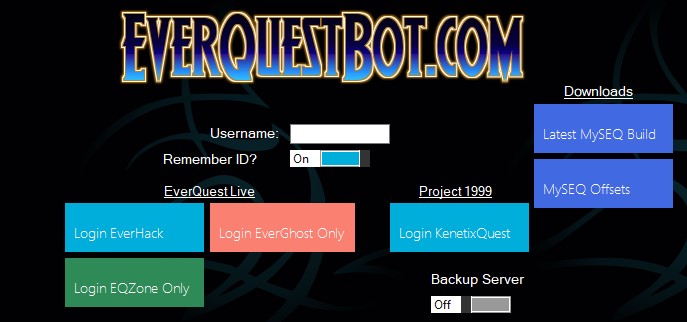
- Once you have logged in, you will have access to KenetixQuest! Now the fun starts!
Ingame Overlay
This feature allows you to toggle on/off hacks right in EverQuest for uninterrupted gameplay! No need to tab to KenetixQuest.
The Overlay will show detailed information regarding your character that Project 1999 hides.
Such as your character's current mana.

- Instant Evac
This feature allows you to instantly zone out of the current zone that you are in. Only a few zones are coded in, I constantly add new ones every new update.
- Moving the Overlay
You can Move the overlay simply by holding down [M], and moving it to any place that you like on the screen. KenetixQuest will autosave it there, and on your next launch it will reopen in that position.
- Closing the Ingame Overlay
You can close the overlay by selecting [X].
Saving/Loading local Warp Coordinates
You can save/load Warp coordinates locally, and privately by creating a text file, and loading it with KenetixQuest. Simply click on Browse, and select the text file you have created. You can quickly add locations by typing in a Waypoint name, and selecting Add current Position to Waypoint. It will automatically add all the information you need, such as zone name and coordinates etc. As well as autosaving it to your text file.

Buff Window/Spell Tracker
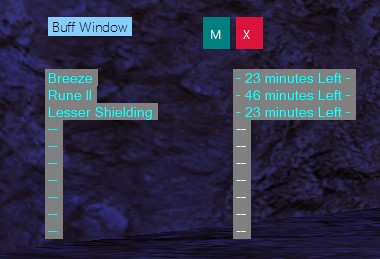
KenetixQuest adds the ability to completely track all your buffs including the exact time remaining straight from the games information. It will tell you how long a negative spell such as Root will last on you, or how long Clarity has left.
Bank Information/Bank Funds Overlay
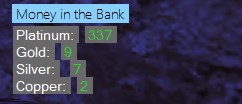
KenetixQuest will show you what's in your bank, and the amount of funds available in the bank from anywhere in the world!
Black Screen after loading KenetixQuest
If you experience a black screen after loading KenetixQuest simply hit ALT+Enter.
